

Capture leads
Collect leads during the show by scanning visitors’ badges with the Visit Connect app:
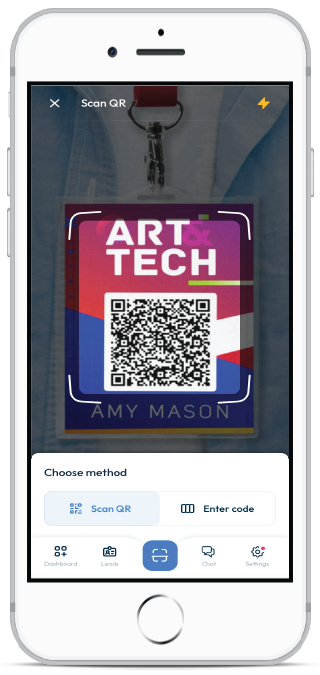
The information captured will appear in the Leads section. Depending on the permissions set for your team members (Show all leads – enabled), you can also view what other team members have scanned.
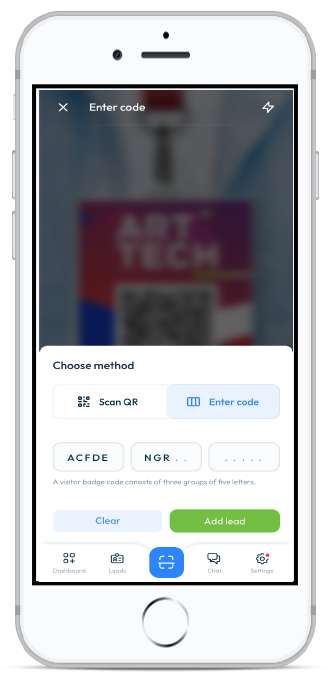
Qualify leads
Qualify the leads you collect by adding notes, media (photos or voice memos) and answering the pre-set questions. This will help streamline the follow-up process for your sales and marketing teams.
Review and manage leads
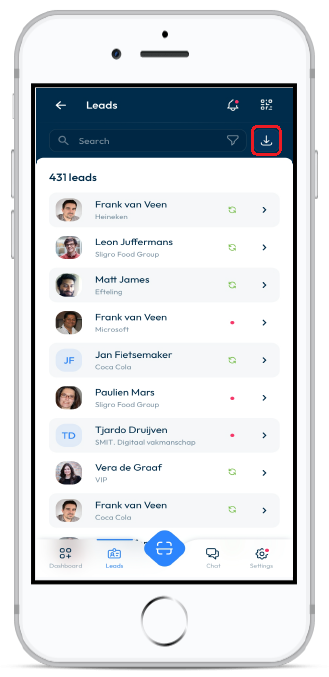
Review & export leads by clicking on the Event Menu and selecting Leads. Tap on one to see the details, and you can continue to annotate after the visitor has left.
Tap the Download icon in the top-right corner to export the list of leads.
Synchronise lead data
If Visit Connect has internet access, it automatically synchronises data to the Visit Connect Portal. The app will continue to operate without an internet connection, but you must ensure that a connection is made by all devices at the end of the show to ensure all data is synced to your account.
To do a manual sync
- Connect your device to the internet.
- Open the Visit Connect scan app.
- Wait until you see the message “All leads are synchronised”.